Mercedes - How to install Android Head Unit?
To install an Android head unit in an older Mercedes-Benz, disconnect the battery, take out the center console, remove the radio and the original screen (each held by 2 Torx 20 screws), connect the kit's harness to the original wiring, refit the radio, fit the new display in its bracket, test it, and put the trim back. The new unit adds Android Auto and Apple CarPlay while keeping the original Mercedes functions. On Mercedes-Benz models from 2017 onwards you usually don't need a new unit at all: an OBD activator can switch CarPlay and Android Auto on.
TL;DR
- Older Mercedes (before 2017): replace the media unit with an Android head unit kit (unit, harnesses, brackets).
- 2017 onwards: use an OBD activator instead; it loads the activation in about 30 seconds.
- Tools: a plastic trim tool and a Torx 20 driver; the console, radio and screen each use 2 Torx 20 screws.
- Disconnect the 12 V battery before you touch the wiring, and reconnect it to test the new unit before final assembly.
- Get the wiring diagram for the new unit before you start.
- If this is not your case, read how to activate CarPlay and Android Auto with OBD2.
Why Install An Android Head Unit In An Old Mercedes?
Today's infotainment systems let you control many functions by touch or voice, and connect your phone to the car. Older Mercedes-Benz models came with the best technology of their time, but some of those features are now out of date. A new media unit with Android Auto and CarPlay brings an older car up to date.
This post covers:
- How do I install an Android head unit in my Mercedes?
- Which Mercedes-Benz models need this procedure?
- Is a new head unit worth it?
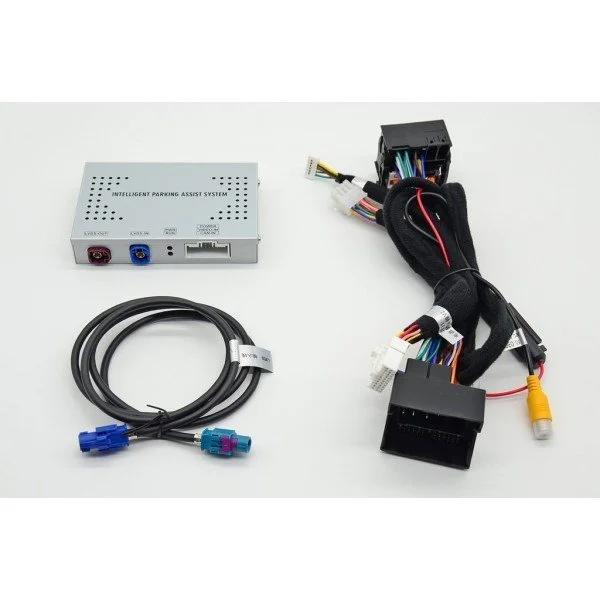
Image Source: tradetecglobal.com
| Your car | What you need | Effort |
|---|---|---|
| Mercedes-Benz from 2017 onwards | OBD activator for CarPlay and Android Auto | Plug in; activation takes about 30 seconds |
| Older Mercedes-Benz | Android head unit kit: unit, harnesses, brackets | Dashboard work: console, radio and screen removal |
How Do I Install An Android Head Unit In My Mercedes?
First, buy a multimedia unit that is compatible with your Mercedes Benz. There are many suppliers. These units keep the original Mercedes Benz functions and add Android Auto and CarPlay. The full kit has the multimedia unit, the electrical harnesses needed to keep all the original functions, and brackets that keep the original look of the dashboard. If your car has a small basic screen, you will usually gain a lot in both looks and function.
Step 1: Disconnect the battery
You will be working on the car's electrical system, so disconnect the 12 V battery first. That way you can work without risk of damage.

Image Source: dhgate.com
Step 2: Remove the center console
Inside the car, take the center console apart. In some cases you only need to remove the ventilation grilles to get easier access for routing the new cables. Start by removing the plastic cover that holds the armrest slide release button, using a plastic trim tool so you don't mark or damage it. Under that cover you will find 2 Torx 20 screws, one on each side. Remove them to free the central panel.
Use the plastic tool to remove the center console. Be very careful, because all the electrical plugs connected to it must be released.
Step 3: Remove radio unit
With the console cover off you can see the radio. It is held to the dashboard by 2 Torx 20 screws in two separate tabs; you don't need to take them out completely. As you remove the radio, disconnect its electrical plugs.
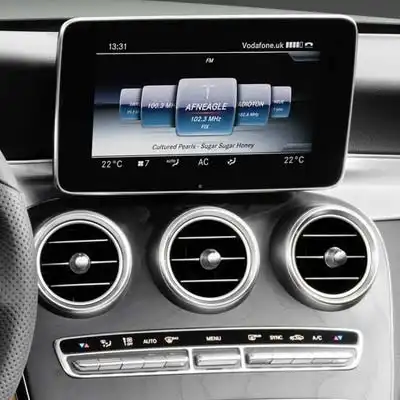
Image Source: https://carplayparatucoche.com/activador-carplay-android-auto-mercedes-ntg/
Step 4: Remove upper instrument panel plastic cover
At the top of the dashboard is a plastic cover, which on some cars is the speaker cover. Remove it with the trim tool. Under it are the 2 Torx 20 screws that hold the original Mercedes-Benz screen. Remove the screws, disconnect the plugs and lift the screen out.
Step 5: Connect the new harness with original wiring.
This is the key step: you connect the original harnesses to the ones in the kit. Get the wiring diagram for the new multimedia unit, which shows exactly which connectors join. Some units have a GPS and a Wi-Fi antenna, so plan where they will go. Lay out and prepare all the connections in place to make the installation easier.
NOTE: In this step it helps to remove the glove box, so you can see where the new parts will sit and route the harnesses better.
Step 6: Reinstall the radio unit
Reconnect all the electrical plugs to the radio. Make sure everything is connected properly and every cable is labelled, which helps with later repairs. Put the radio back and check that it doesn't touch the new cables.
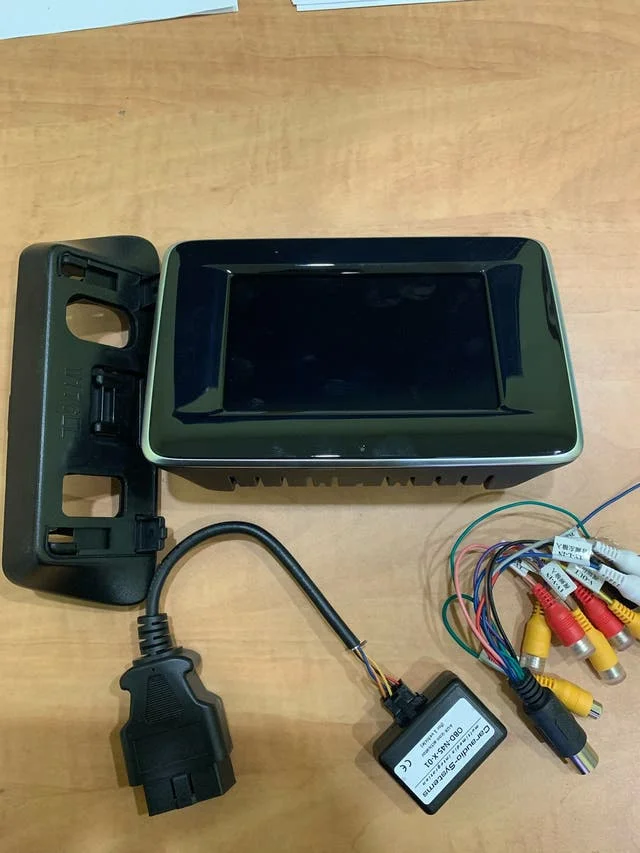
Image Source: https://es.wallapop.com/item/pantalla-mercedes-clase-a-2016-498371367
Step 7: Install the new display
Put the new multimedia unit (display) in its bracket and connect all the plugs. Fit the unit in place and lightly secure it with the screws.
NOTE: Test the new unit now. Reconnect the battery, start the car and check that everything works. If you also fitted a reversing camera module and the picture doesn't show, see the reverse camera troubleshooting guide.
Step 8: Complete the installation
Finally, refit all the trim and components.
Which Mercedes-Benz Models Need This Procedure?
On Mercedes-Benz models from 2017 onwards you can usually switch on Android Auto and CarPlay with a compatible OBD activator. Earlier models need the procedure above. Once it works, the Mercedes Apple CarPlay setup guide covers pairing your phone.
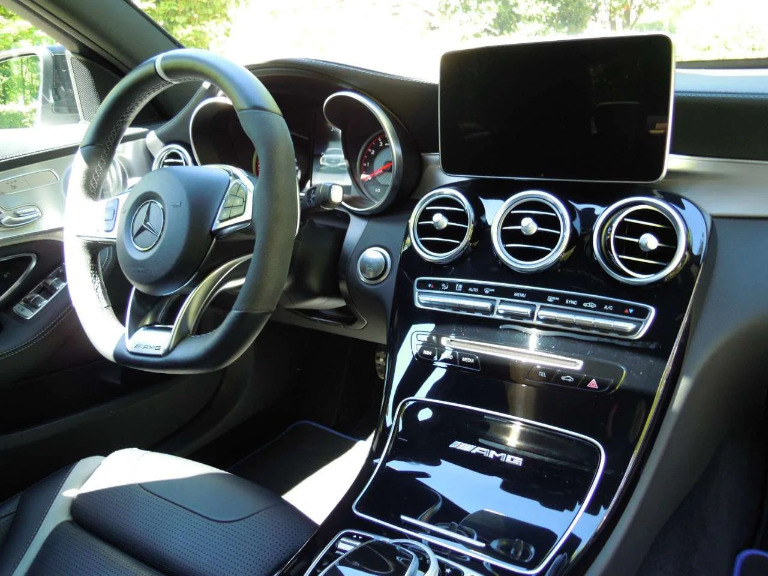
Image Source: motor.com.co
Is A New Head Unit Worth It?
Updating the equipment is a good way to keep an older car current. Even premium brands age, and a new unit gives you better connection between your phone and the car.
Reference Head Unit Replacement: mbworld.org forum thread "Head unit replacement W211"